Best AI Tools for App Store Screenshots in 2026: An Honest Comparison
A practitioner's guide to AI tools for App Store and Google Play screenshots — where each one fits, and where TapUI sits in the workflow.
TL;DR: "AI app store screenshot" tools split into two jobs. Most — AppScreens, AppLaunchpad, Previewed, StoreShots — frame, caption, and localize screens you already have. A smaller group — TapUI, Google Stitch — generates the UI screens in the first place. Decide which problem you have first: AppScreens is the most complete assembler (and the strongest on direct store upload), while TapUI sits upstream, turning a plain-text description into polished mobile UI screens.
Type "AI app store screenshots" into a search bar and you'll get two very different kinds of tools wearing the same label. One kind frames and captions screens you already have. The other kind generates the app screens themselves. They solve different problems, and confusing them is how teams end up paying for software that does half of what they needed.
This guide sorts that out. I'll walk through the tools that actually matter in this category in 2026, where each one is genuinely good, and where it falls short. TapUI is one of the tools here, but it sits at a different point in the pipeline than most of the others — so the honest answer to "which is best" depends a lot on what you're starting with.
Quick comparison
| Tool | Stage | Best for | Key strength | Direct store upload | Pricing |
|---|---|---|---|---|---|
| AppScreens | Stage 2 | Teams who want one-step publishing | Auto-sizing + upload to App Store Connect & Google Play | ✅ | Paid plans, limited free tier |
| AppLaunchpad | Stage 2 | First-time listings | Friendly, fast, big template library | ❌ | Paid monthly/annual, free trial |
| Previewed | Stage 2 | Visual polish + video previews | 3D renderings, video output | ❌ | Free tier; monthly or one-time Pro |
| StoreShots | Stage 2 | Prompt-driven asset creation | Describe-it-and-build flow | ⚠️ | Priciest, no free tier |
| Shotsnapp / mockup tools | Stage 2 | Quick single mockups | Drop a screen into a frame | ❌ | Free tier; paid hi-res |
| Google Stitch | Stage 1 | Concept-to-wireframe UI | Text/sketch-to-UI + frontend code | n/a | Free, daily credits |
| TapUI | Stage 1 | Generating screens you don't have yet | Text-to-polished-mobile-UI | n/a | Free tier; Starter $20/mo, Pro $40/mo |
First, two different jobs
The work splits cleanly into two stages, and almost every tool in this category covers only one of them.
Stage one: getting the UI screens. Before you can market an app, you need the screens — a dashboard, an onboarding flow, a settings page. Maybe they come from a real, built app. Maybe you're pre-launch and don't have a polished UI yet.
Stage two: turning screens into store assets. Once you have screens, you frame them in device mockups, add headline copy, resize to each platform's spec, and translate captions for the markets you ship to.
Almost every "AI app store screenshot" tool lives in stage two. They assume you already have screens and they help you frame, caption, and localize them. AppScreens, AppLaunchpad, Previewed, StoreShots — these are stage-two tools, and several are excellent at it.
TapUI lives in stage one. You describe an app in plain text and it generates polished mobile UI screens — the kind of thing a founder or PM reaches for when they need a credible-looking app interface fast, without sitting in a design tool by hand. Those designs are something you can hand to your developers, but TapUI isn't a store-listing assembler. If your only problem is "I have my real app screens and need them framed and captioned for the App Store," a dedicated stage-two tool will serve you more directly.
I'm saying this up front because it's the most common mismatch I see.
The stage-two screenshot tools worth knowing
AppScreens
Best for: teams who want store assets and one-step publishing in the same tool.
AppScreens is the one to reach for when direct store integration matters. It generates the right sizes for App Store and Google Play automatically, has a large template library, supports localization across many languages, and — the part that genuinely saves time — uploads straight to App Store Connect and Google Play in one step. AI shows up here mainly for caption generation and translation.
- Pros: auto-sizing for both stores, deep localization, direct upload.
- Cons: the layer-based editor can feel heavy for quick jobs, and templates can look generic once you've seen enough. Paid monthly plans with a limited free tier.
AppLaunchpad
Best for: anyone making their first store screenshots.
AppLaunchpad is the most forgiving starting point if you've never made store screenshots before. Big template and graphics libraries, a lot of device frames, AI localization, and you can have usable screenshots in well under ten minutes. It's a sensible default for a first listing.
- Pros: fast, forgiving, large libraries, AI localization.
- Cons: a low customization ceiling once you want something off-template, some dated templates, separate iOS/Android projects, and no Vision Pro support. Paid monthly or annually, with a free trial.
Previewed
Best for: teams who care more about how the assets look than how fast they mass-produce them.
Previewed is the pick when visual quality matters more than volume. The 3D renderings are genuinely nice, and it can output video previews, which most competitors can't. Clean interface and a free tier.
- Pros: strong 3D renderings, video previews, clean UI, an unusually affordable one-time Pro option alongside a monthly plan.
- Cons: smaller device selection and a thin template library. It's really a mockup-and-video tool, not an AI generator — set expectations accordingly.
StoreShots
Best for: people who want a prompt-driven, describe-it-and-build flow.
StoreShots gives you the most fluid "describe it and AI builds it" experience in the stage-two category: you write the style you want in plain English and it produces complete screenshot designs — mockups, backgrounds, headlines — in a couple of minutes, with localization.
- Pros: fluid prompt-driven workflow, full designs in minutes, localization, and an open-source variant where you bring your own API key.
- Cons: the priciest option in this roundup with no free tier, and reviewers have raised privacy questions worth reading before you commit.
Shotsnapp and the mockup-only tools
Best for: a quick single device mockup, not a full localized store set.
Shotsnapp does one thing well — dropping a screen into a device frame — and doesn't pretend to be a full workflow tool. It's a browser-based device-mockup maker with a free tier (paid for hi-res and no watermark). Useful for a quick website or social image; not where you'd build a full localized store set.
A few others fit similar niches: AppMockUp is genuinely free and simple, Rotato is the high-end 3D-and-video option (one-time pricing, no AI), and PlaceIt does real-life contextual mockups on a subscription.
A note on Google Stitch (the common mix-up)
Best for: fast concept-to-wireframe UI work — a stage-one tool, not a screenshot assembler.
Google Stitch is a UI generator, not a screenshot assembler — which is why it shouldn't appear on most "best app store screenshot" lists, even though it keeps showing up. Stitch is a text- and sketch-to-UI design tool that generates full app UI screens and frontend code. It launched at Google I/O in May 2025, runs on Gemini, and reached a 2.0 release in early 2026. It's free, with daily design and redesign credits and no card required, and it exports to Figma and HTML.
- Pros: free with daily credits, fast concept-to-wireframe work, multi-screen flows, exports to Figma and HTML.
- Cons: generic visuals, unpredictable credit usage, trouble holding flows beyond about three screens, geographic access limits, and the general uncertainty of a Google Labs beta.
So Stitch is actually a stage-one tool, and the closest thing here to a direct alternative to TapUI rather than to AppScreens. If you're comparing UI generators, Stitch belongs in that conversation. If you're comparing store-asset assemblers, it doesn't.
For developers who want automation
Best for: engineers who live in CI/CD.
Fastlane's Snapshot and Screenshots.pro are the options worth knowing if you work in CI/CD — but neither is for non-engineers, and both are overkill if you just need a handful of nice store images. Fastlane's Snapshot is the free, open-source standard for automated iOS screenshots — but it's macOS-only, iOS-only, and requires coding. Screenshots.pro offers an API for CI/CD integration on a subscription.
So where does TapUI fit?
Best for: founders, PMs, and designers who don't have the screens yet.
Use TapUI when you don't yet have the screens. A founder validating an idea, a PM who needs a believable interface for a pitch or a store mockup, a designer who wants a strong first draft instead of a blank artboard — that's the spot. You describe the app in plain language and get polished mobile UI screens back, fast, without manual design work.
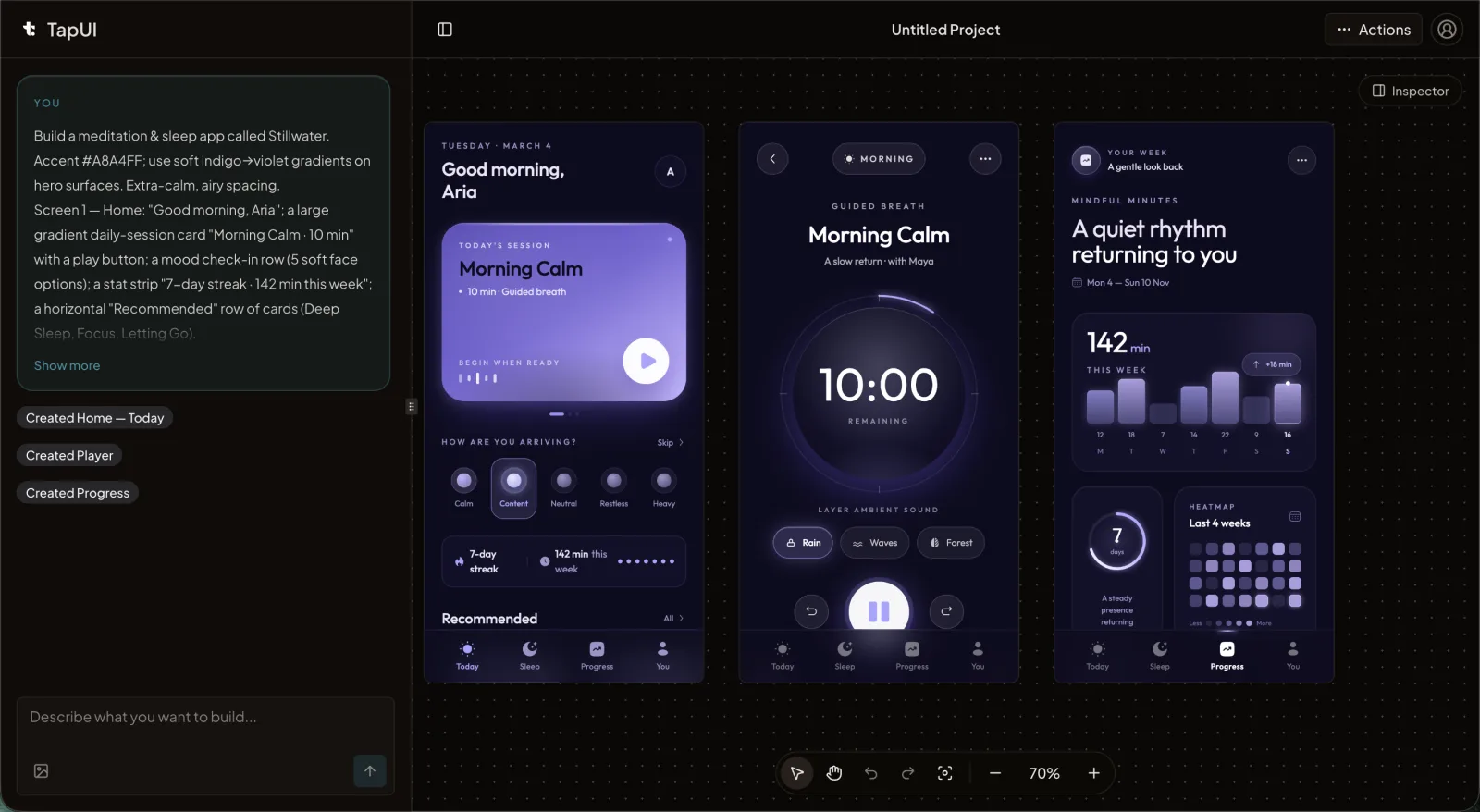 TapUI generates polished mobile UI screens from a plain-text description — a stage-one step before you frame and caption store assets.
- Pros: no design experience needed, fast text-to-UI output, screens you can hand to developers, a free tier to try it. Paid Starter ($20/mo, or $17/mo billed yearly) and Pro ($40/mo, or $27/mo billed yearly) plans add more monthly generations, project history and exports, and priority support.
- Cons: it's a UI generator, not a store-listing assembler — it does not frame, caption, resize, or upload store assets, and it does not export native React Native, Swift, or Flutter code.
Use a stage-two tool when you already have screens — real ones from a shipping app, or generated ones — and your job is framing, captioning, resizing, localizing, and uploading to the stores. For that last mile, AppScreens, AppLaunchpad, Previewed, and StoreShots are each better-suited than a UI generator, and AppScreens in particular wins on direct store upload.
In a realistic workflow these aren't competitors so much as neighbors: generate or refine screens at stage one, then assemble the listing at stage two. The mistake is expecting one tool to own both ends.
Getting the assets right, whichever tool you use
The fundamentals matter more than the tooling. A few things hold true regardless of what you pick.
Your first screenshots do most of the work. The App Store surfaces the first three screenshots directly in search results and category browsing — often before anyone taps through to your product page (Apple's App Store product page guidelines). Google Play shows the first few the same way. Lead with your strongest, clearest screens, in order.
Make text legible at thumbnail size. Store listings render small. Short headlines, generous weight, and one idea per image beat a dense collage every time.
Respect the platform rules. Apple wants accurate representations of real functionality, RGB, flattened images, and no misleading claims. Read the current Apple and Google guidelines before you finalize — they change, and a rejection costs you more time than reading them would.
Localize where it counts. Translated captions measurably help in non-English markets, which is exactly why localization is the headline AI feature across the stage-two tools. If you ship globally, this is where the AI in these products earns its keep.
Refresh on real events. Update screenshots around major releases and meaningful feature launches — not on an arbitrary calendar. New screens should reflect something that actually changed.
FAQ
What's the difference between these tools, really?
Most "AI app store screenshot" tools frame and caption screens you already have. A smaller group — TapUI, Google Stitch — generates the UI screens in the first place. Decide which problem you have before you compare prices.
Which tool uploads directly to the App Store and Google Play?
AppScreens is the strongest on direct store upload, pushing finished assets to App Store Connect and Google Play in one step. That's its main differentiator over the others.
Does TapUI export code for React Native, Swift, or Flutter?
No. TapUI generates mobile UI designs that you hand to developers to build, but it does not export native code or platform-specific frameworks. It's a UI generator, not a code generator.
Do I need design experience to use TapUI?
No. You describe the app in plain text and TapUI generates the mobile UI screens. It's aimed at founders, PMs, and designers who want working app UI quickly without doing the layout work by hand.
How many screenshots should I upload to the App Store?
Apple allows up to ten per device size; Google Play allows up to eight. Both surface only the first three in search results, so those three carry the decision. Use as many as you have distinct, worthwhile things to show — quality beats filler — but put real thought into the first three before worrying about hitting the cap.
Is there a genuinely free option?
Yes. Several tools have free tiers: AppMockUp is free, Previewed and AppScreens have free plans, TapUI has a free tier, and Google Stitch is free with daily credits. Fastlane's Snapshot is free and open-source but requires coding skills.
Which one should you pick?
There's no single "best" here, and any list that crowns one winner is skipping the part that matters. Route by what you're starting with:
- Don't have the screens yet? → TapUI (polished mobile UI from a text description) or Google Stitch (free, beta-grade UI generator).
- Have screens and want one-step publishing? → AppScreens.
- Making your first listing and want it easy? → AppLaunchpad.
- Want the best-looking assets, plus video? → Previewed.
- Prefer describing the style and letting AI build it? → StoreShots (if you can stomach the price).
- Just need a quick single mockup? → Shotsnapp or AppMockUp.
- Automating in CI/CD? → Fastlane's Snapshot or Screenshots.pro.
TapUI's role is upstream of all of them: turning a plain-text description into polished mobile UI screens, fast, for people who don't want to design by hand. Figure out which stage you're standing in, and the right tool gets a lot more obvious.
Want to see how fast a described app turns into real screens? Try TapUI.